
FoodLabel field guide
Reuse a food container without losing track of what is inside
Write a short code on the container once. Keep the food name and date in FoodLabel, then update that same record when you fill it again. You still need a way to match the physical container to its code; a digital inventory does not identify an unmarked box for you.
This guide uses manual entry. You do not need voice recognition, an AI suggestion or a QR printer to follow it.
Give the container its own code
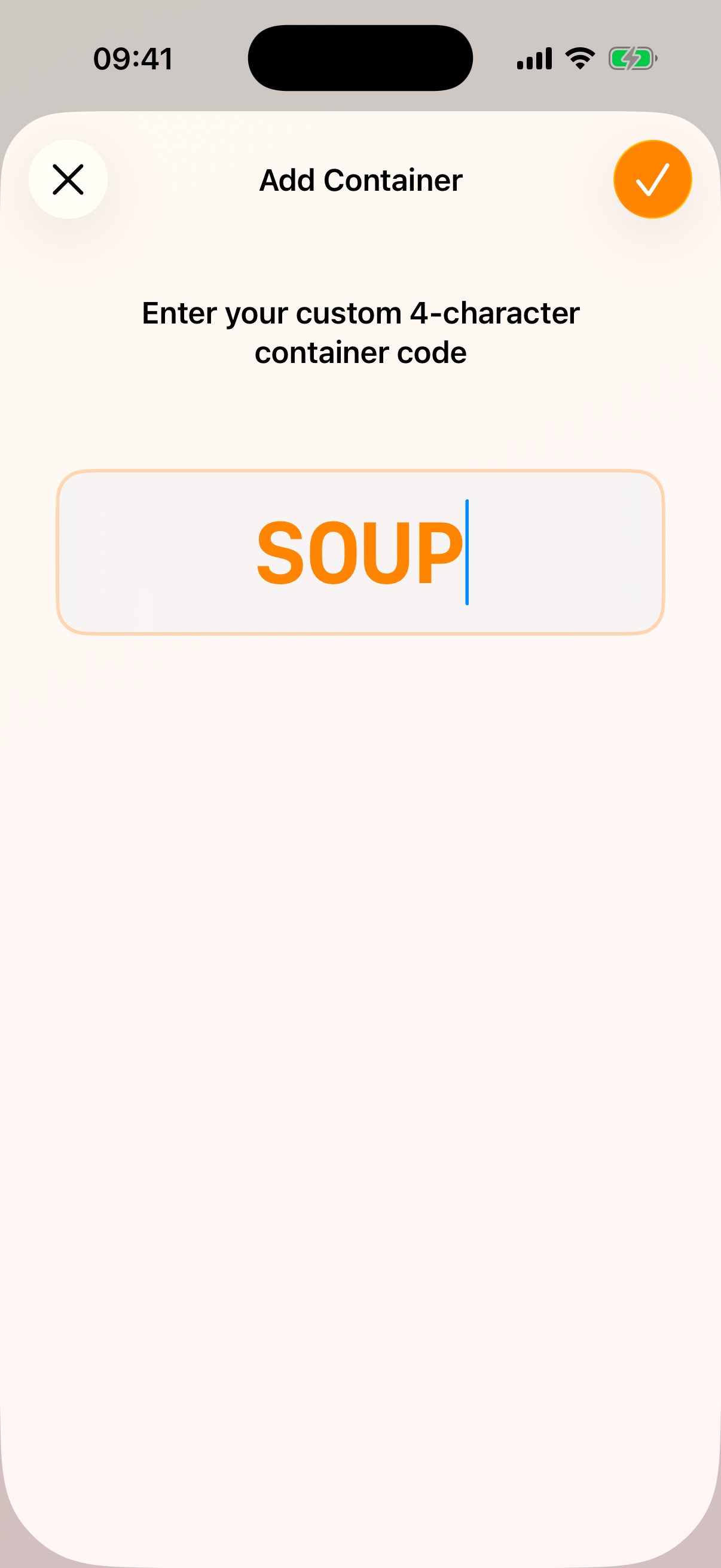
Open the storage area where you keep the container. Tap the add button, choose Custom Code and enter four uppercase letters or digits. Our example is SOUP. Write that same code on the physical container with a suitable marker or label.
The code identifies the container, not its current contents. SOUP can hold pasta next time. Pick a code you can read and keep it distinct from the other containers you use.
Add the food and review the date
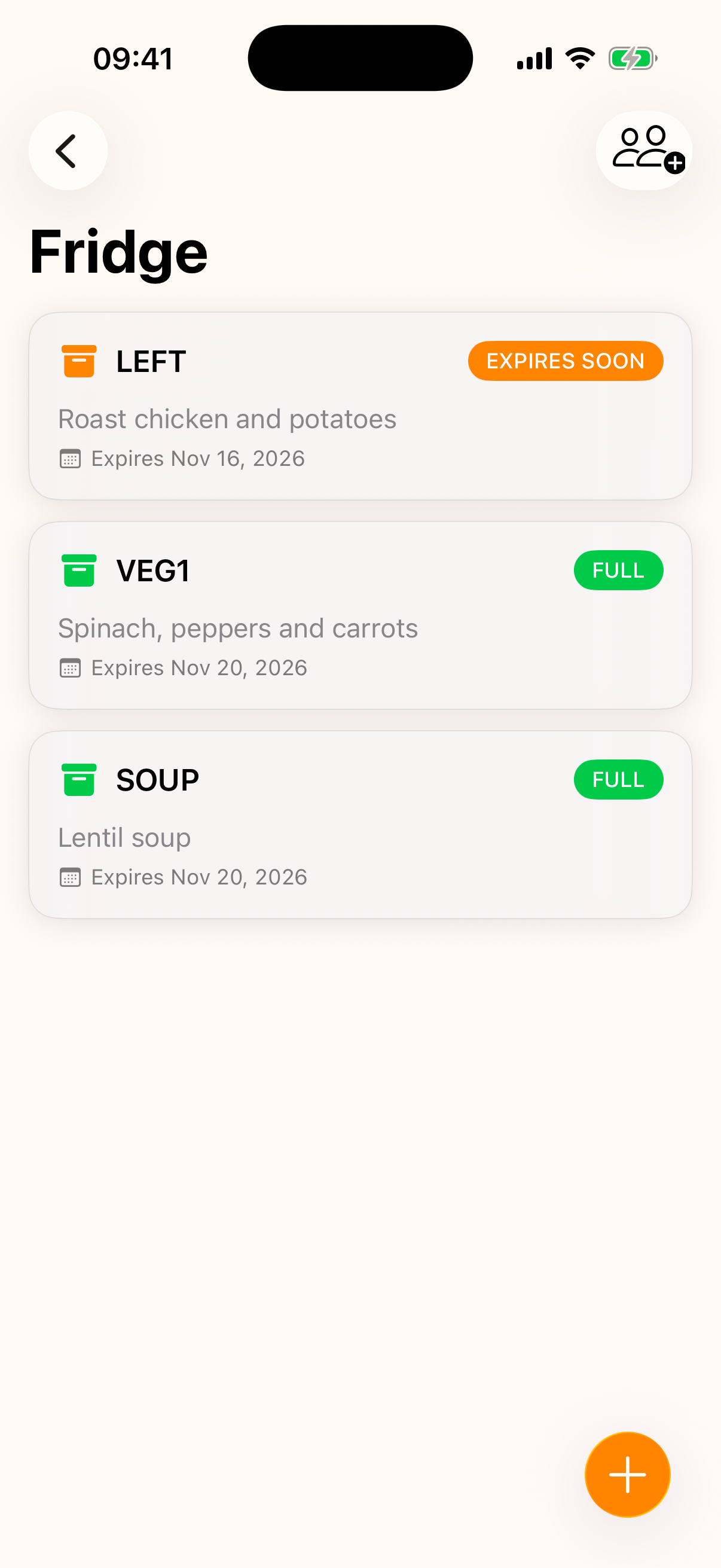
Press and hold the empty container and choose Add Manually. Give the food a name you will recognize in a search. Set a quantity if useful.
A date is optional. If you set one, the control uses days from today: check the displayed calendar date before saving. Our example dates are test inputs, not storage advice. FoodLabel cannot establish whether food was handled or stored safely, and a date in the app does not certify that it is safe to eat.
Save the form and open the container details to check the code, contents and storage area. To correct the name or date later, use Edit and save again. Expiry reminders also depend on your notification settings and iOS permission; this walkthrough does not verify notification delivery.
Find the record, then match the code
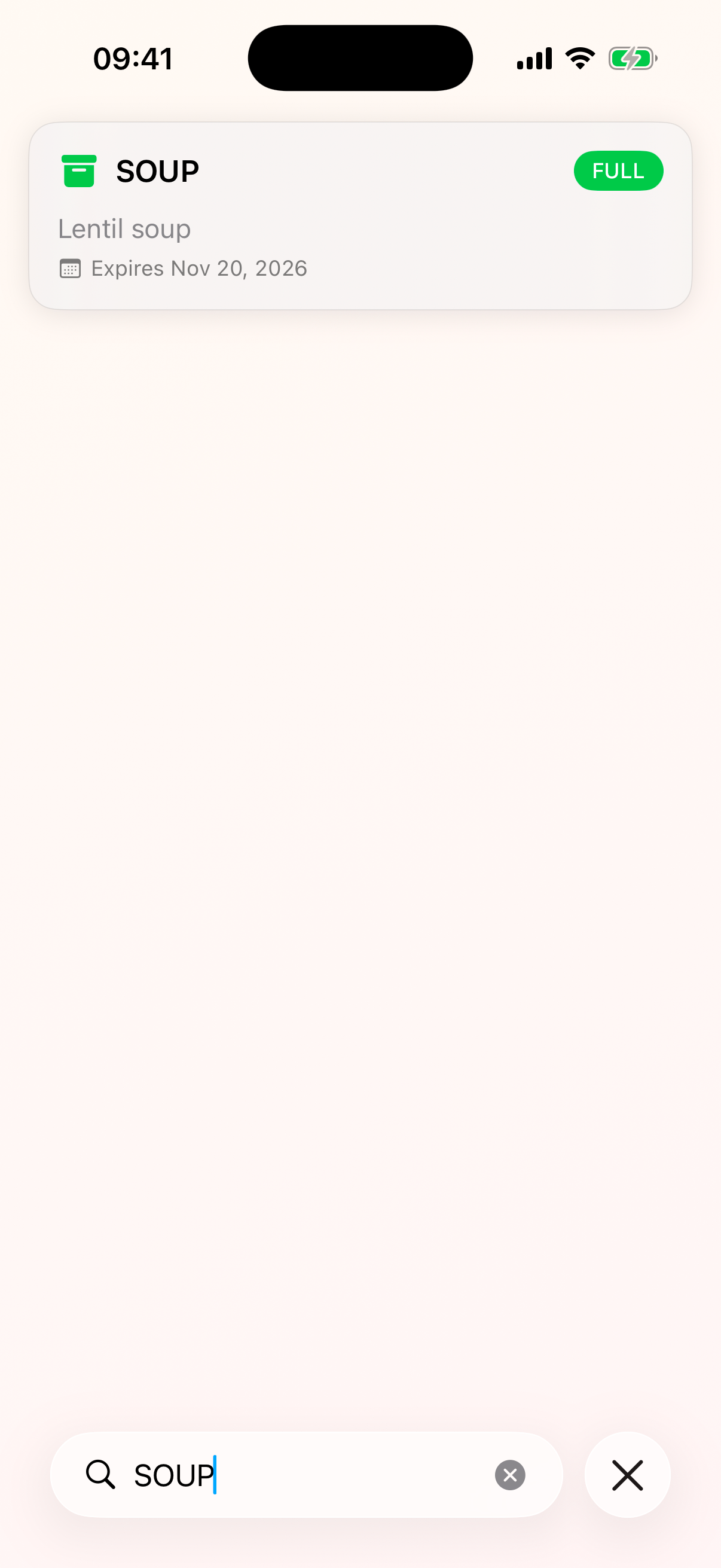
From the storage areas screen, search for the food name or the code. Open the result and compare its code with the one on your physical container. Searching for pasta tells you which record to open; the code tells you which box to take.
Empty the contents and reuse the record
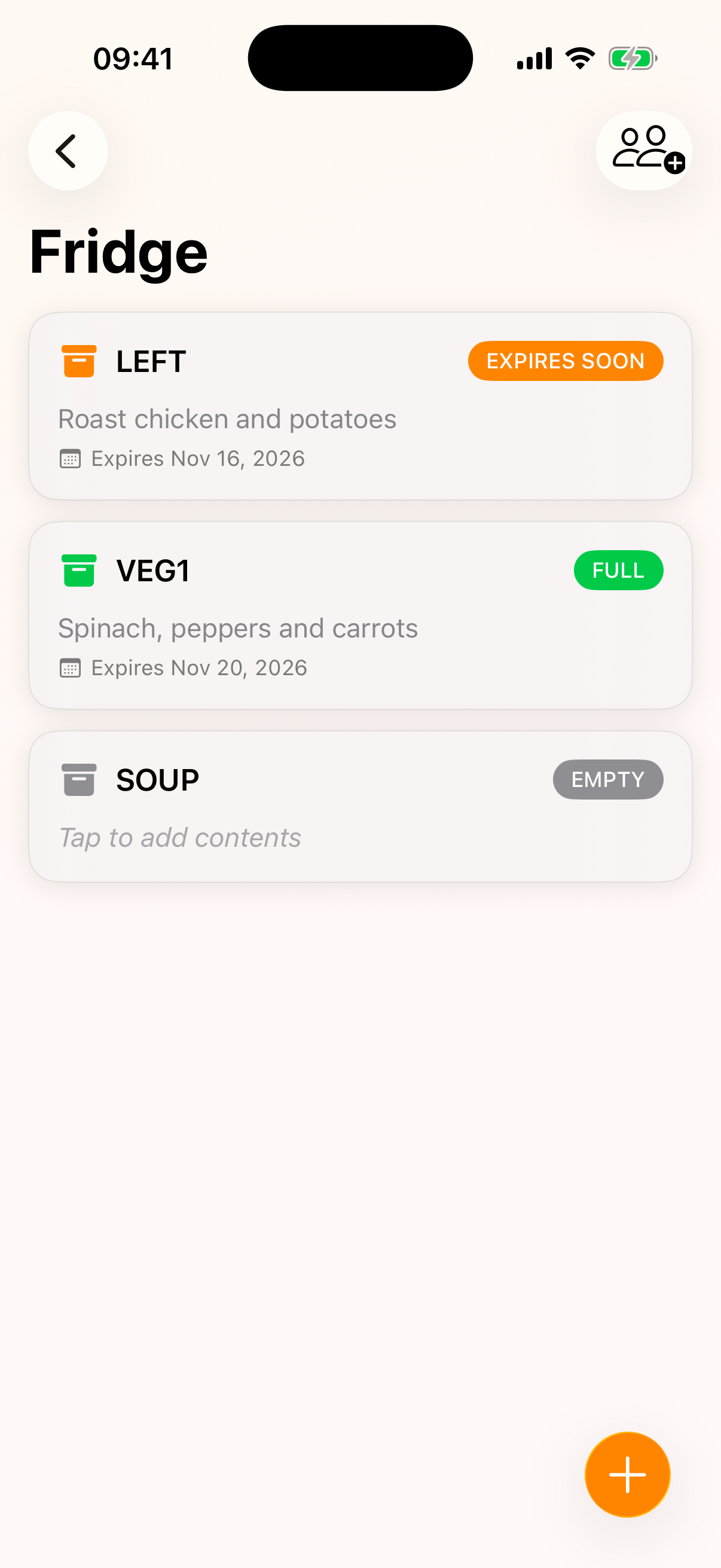
After using the food, return to its storage area and open the container there. Choose Empty Container. When you fill that container again, open the same code and add the new contents. There is no reason to create another record for each meal.
Delete Container is different: it removes the container record. Use it when you want to stop tracking that container, not as the normal step between meals.
What we checked
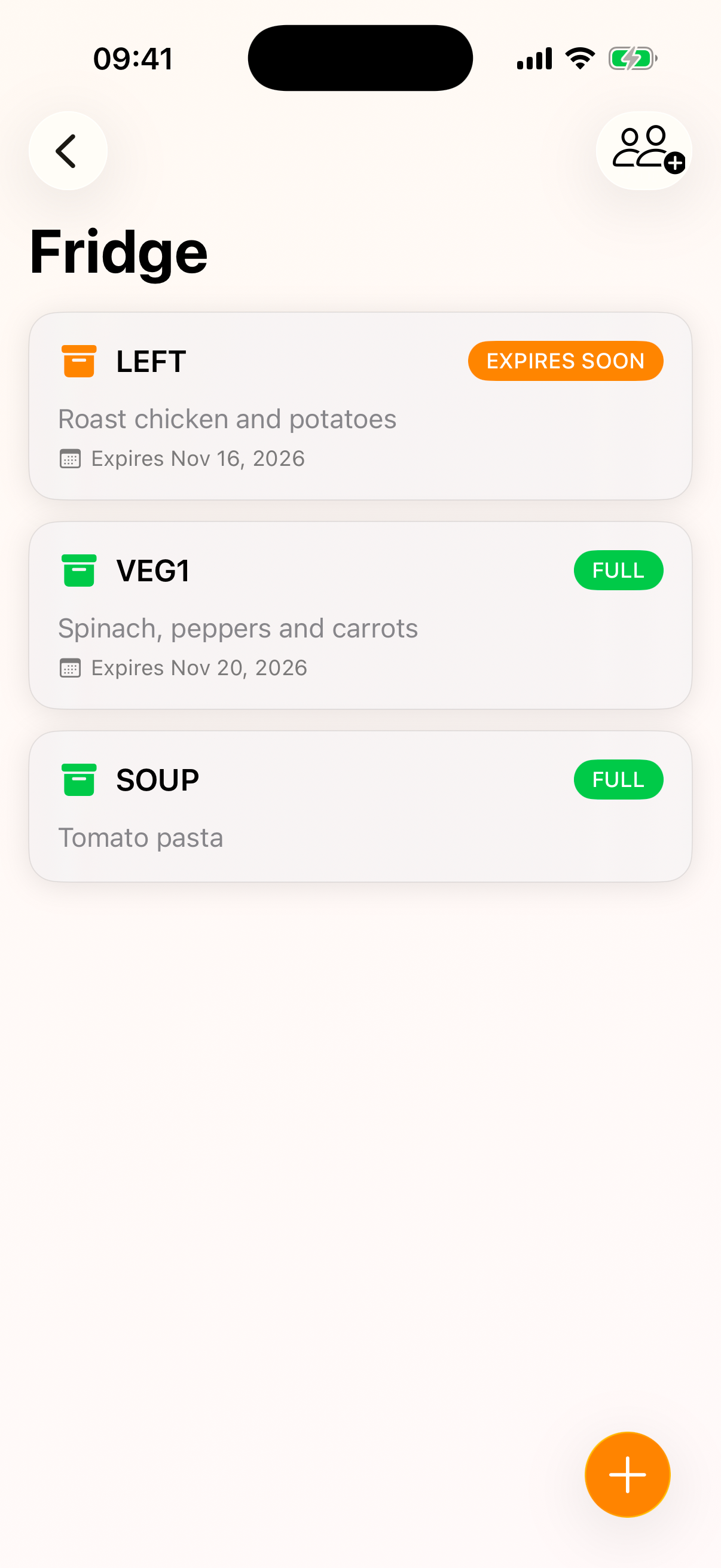
We ran the manual cycle on November 13, 2026, using FoodLabel 1.5 (61) in an iPhone 17 Pro simulator running iOS 26.3.1. We created SOUP, saved Lentil soup, found it by code and changed its test date from November 16 to November 20. These were demonstration dates, not recommendations.
The food name and quantity disappeared when we emptied SOUP, and its expiry date was cleared too, so adding Tomato pasta to the same container did not carry the old meal’s date into the next entry. We checked the stored record: its identity, code and storage area were unchanged. The count stayed at five.
An empty container still occupies a place in the free plan. We checked the free-account limit separately: all ten existing automated tests passed, including allowing the fifth container, blocking a sixth and excluding deleted records. The debug build used for screenshots is unlocked, so these screenshots do not demonstrate a purchase restriction.
We repeated the add, search, empty and refill steps in Spanish for the localized screenshots, using Sopa de lentejas and Pasta con tomate.
The practical result: reuse the record between meals. Delete it only when you stop tracking that physical container. We did not measure input speed, food-waste reduction or real-world storage life.
Before you download
The free plan tracks up to five containers. More containers require a purchase; check the offer and local price shown before paying. This guide does not require a subscription trial.
The screenshots use fictitious food in an iPhone simulator. They demonstrate the manual workflow, not a household experiment, food-waste savings or speech recognition accuracy.